
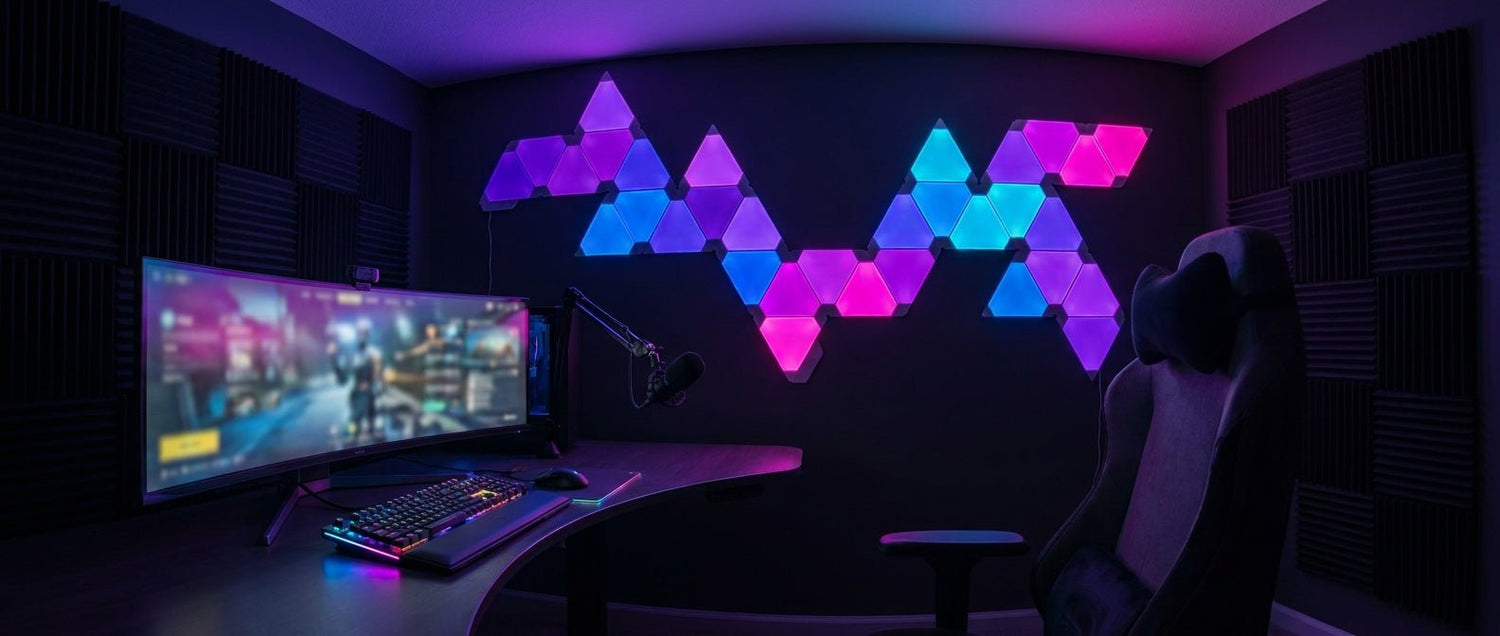
Your Streaming Background Matters More Than You Think
You can have the best microphone, the sharpest camera and the cleanest gameplay, but if your background looks empty or flat, viewers notice. In a crowded streaming space, your backdrop is often the first thing people judge.
The good news is you do not need a full studio to make your stream look better. A few well-placed RGB wall panels can add depth, colour and personality to your camera frame without rebuilding your entire room.
In this guide, we will cover how to plan, place and configure RGB wall panels for a cleaner, more professional streaming background.
Why RGB Wall Panels Work So Well on Camera
If you've ever watched back your own stream and thought "this looks flat", you've already identified the problem. Without background lighting, your camera captures a two-dimensional image. You blend into the wall behind you, there is no separation between you and your environment, and the whole frame feels lifeless.
RGB wall panels fix this by creating a distinct visual layer behind you. That layer adds depth, colour and texture to the frame, making you stand out against the background instead of blending into it.
Think of it like a simple lighting setup. Your main light handles your face, your room lighting controls the mood and your RGB panels create the background layer. That third layer is often what separates a casual webcam feed from a more polished stream.
One important rule: never use coloured RGB lighting as your primary face illumination. It can distort skin tones on camera and make your feed look unnatural. Panels belong behind you, providing ambient and background light only.
Choosing the Right Panel Layout for Your Wall
This is where your background starts to feel personal. Modular panels can be arranged in different layouts, and that flexibility is the whole point. Your wall design becomes part of your visual identity, just like your overlay, logo or intro screen.
Placement matters more than most people think. Mount your panels behind and slightly above head level so they sit comfortably within the camera frame without causing glare.
Working with a small room? A vertical layout can create the illusion of extra height and depth. Even a compact bedroom can feel far more premium on camera when the lighting naturally draws the eye upward.
The Elements Triangle Panels are designed for this kind of flexible wall layout. They let you build geometric RGB designs that work well behind gaming desks, streaming setups and content creation spaces.
Many creators also add a Pixel Display alongside their wall lighting to show animations, social handles, subscriber milestones or custom artwork. It gives viewers another focal point without overwhelming the frame.
Picking Colours That Actually Look Good on Stream
The most common RGB mistake is using every colour at once. A rainbow wall might look fun in person, but on camera it often appears chaotic and distracting.
A better approach is to limit your palette to one primary colour with a subtle accent colour. The result is cleaner, more professional and much easier on the eyes.
Purple, deep blue and teal are strong choices for streaming setups because they create atmosphere without overpowering the frame. They also pair well with darker desks, monitors and gaming peripherals.
Think about your channel branding when selecting colours. Your logo, overlays and overall aesthetic should influence your lighting choices. When everything works together, the whole stream feels more intentional.
A word of caution on brightness: RGB panels set too bright will spill colour onto your face and compete with your key light. Keep panels at low-to-medium brightness. Your background should support the stream, not become the centre of attention.
Configuring Your Lighting for Different Streaming Moods
A static background works perfectly well, but reactive lighting can add another level of immersion. Consider creating different lighting scenes for different types of content.
Deep red or crimson works well for horror games. Soft blue and warm amber are great for relaxed chat streams. Bright blues and whites can help create a more energetic feel for competitive games.
Small changes like these can dramatically alter the mood of your stream without changing your camera, overlays or room layout.
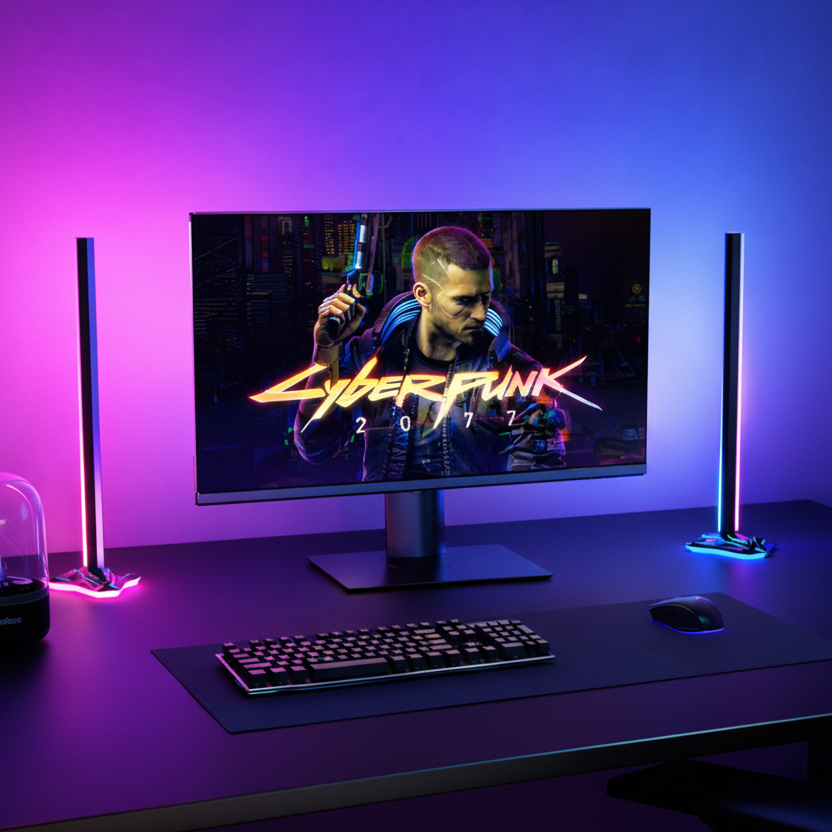
If you want your desk lighting to react to what is happening on screen, the Atmos Monitor Sync Backlight adds immersive screen-sync lighting behind your monitor. It helps make both your gaming experience and your background feel more connected.
The Camera Test: Preview Your Setup Before Going Live
One thing many creators overlook is that cameras see lighting differently than the human eye. A setup that looks fantastic in person may look completely different through your webcam.
Instead of judging your lighting while standing in the room, open OBS or your preferred streaming software and evaluate the actual camera feed.
Check for three things:
- Colour spill on your face. If your skin appears tinted, reduce brightness.
- Panel placement in frame. Make sure the lights are visible but not awkwardly cropped.
- Brightness balance. Your face should stay the main focus while the background adds atmosphere.
If the background competes with your face for attention, turn the brightness down. Recording a short test clip and watching it back is often the quickest way to spot issues.
Build the Background Your Stream Deserves
A great streaming background does not need to be complicated. Use RGB panels to add depth, place them correctly within the camera frame, keep your colours consistent and build lighting scenes that suit your content.
Most importantly, create something that feels like your own space. The best streaming setups are memorable because they reflect the personality of the creator behind them.
If you want to start building your background, explore the Elements Triangle Panels. Pair them with the Atmos Monitor Sync Backlight if you want screen-reactive lighting around your monitor too.
Every Zyko order includes free worldwide shipping and 30-day returns, giving you the flexibility to experiment and build a setup that feels right for you.

Leave a comment
This site is protected by hCaptcha and the hCaptcha Privacy Policy and Terms of Service apply.