Monitor Sync Backlight: How to Build a More Immersive Desk Setup
If you spend a lot of time at your desk, the space around your monitor matters more than you might think. A monitor sync backlight can turn a plain desk into a more immersive, comfortable and visually balanced environment without needing complicated installation or expensive extra hardware.
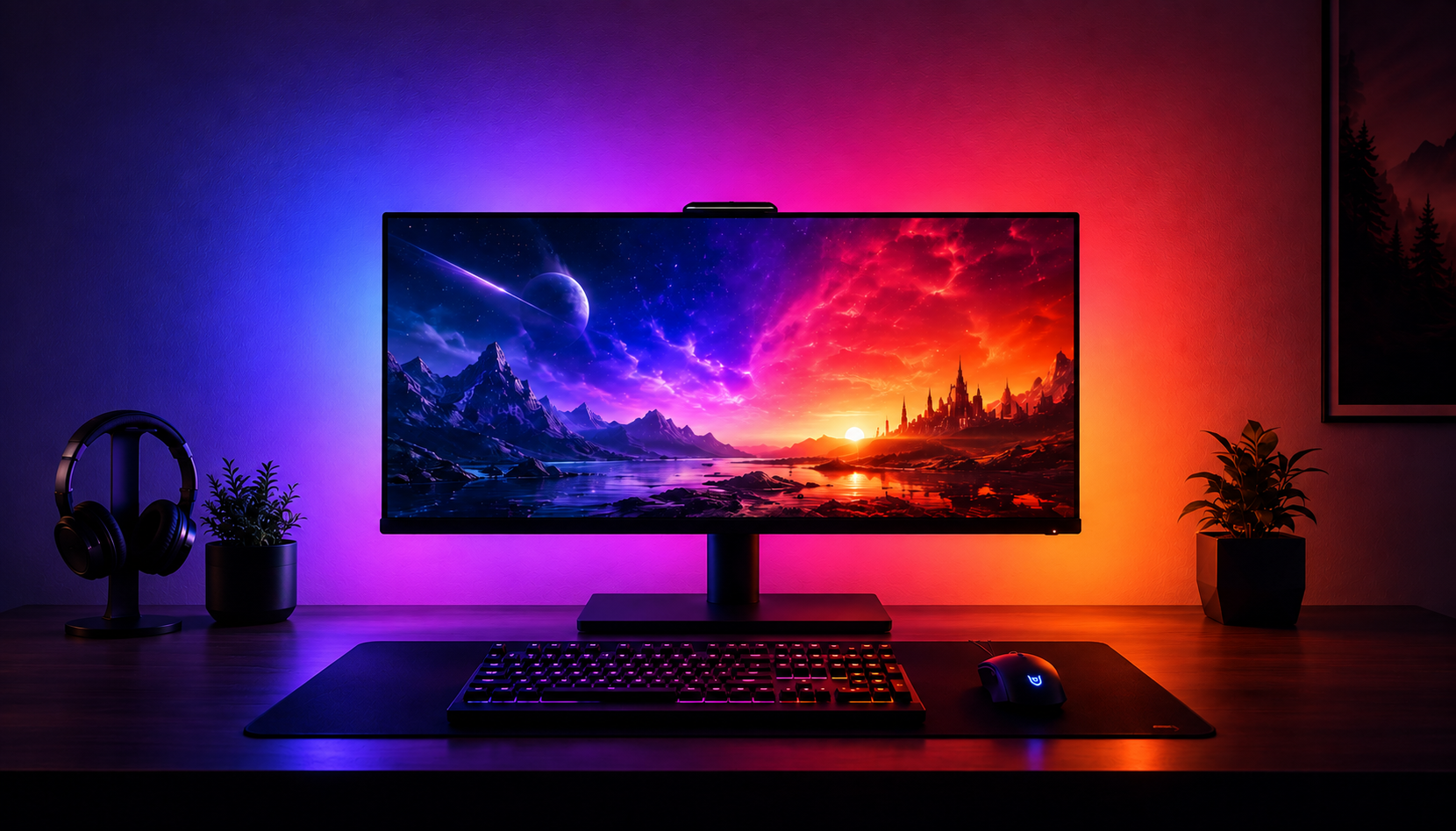
Instead of using one static colour, a screen-synced backlight reacts to what is happening on your display. When your screen shifts from deep blue to bright orange, the light behind your monitor follows. This creates a softer glow around the screen and helps the whole desk feel more connected to whatever you are watching, playing or creating.
What Is a Monitor Sync Backlight?
A monitor sync backlight is an LED strip that attaches to the back of your monitor and changes colour in real time to match your screen. It casts light onto the wall behind your display, creating a reactive ambient glow that extends the feeling of your screen beyond the edges of the monitor.
Basic LED strips can make a desk look better, but they usually stay on one colour or cycle through preset effects. A screen-synced monitor backlight is different because it reacts to your content. Films, games, videos and creative work all produce different colours, and the backlight follows those changes as they happen.
This type of lighting is often called ambient monitor lighting, bias lighting, screen-synced lighting or reactive RGB lighting. The goal is the same: to create a softer, more immersive glow behind your screen.
How Screen-Synced Lighting Works
Modern monitor sync backlights usually work by reading the colours on your screen and sending that information to the LED strip. Instead of showing one flat colour, the strip can display different colours across different sections.
This is where RGBIC lighting matters. A standard RGB strip often shows one colour at a time. An RGBIC monitor backlight can show multiple colours at once, which is much better for screen sync. If the left side of your screen is blue and the right side is orange, the strip can reflect both colours instead of blending everything into one average shade.
Latency is also important. If the lighting reacts too slowly, the effect feels disconnected from the screen. A low-latency backlight feels much smoother because the colour changes happen almost instantly.
Why Choose a No-Camera, No-HDMI Backlight?
Some screen sync lighting systems use a camera pointed at your monitor. Others use an HDMI sync box that sits between your device and your screen. Both can work, but they add extra hardware, cables and setup steps.
A software-based USB monitor backlight keeps things simpler. You attach the strip to the back of your monitor, plug it in, install the desktop software and let the system read your screen directly. There is no camera to position and no HDMI box to connect.
This is especially useful for PC and Mac users who want reactive monitor lighting without adding more devices to their desk. It keeps the installation cleaner and avoids extra complications if you use multiple inputs, a KVM switch or a more complex desk layout.
Backlight Strips vs Sync Bars
A monitor backlight strip handles the main glow behind your screen. It creates the strongest visual effect because the light spreads directly onto the wall behind the monitor. For most people, this is the best starting point.
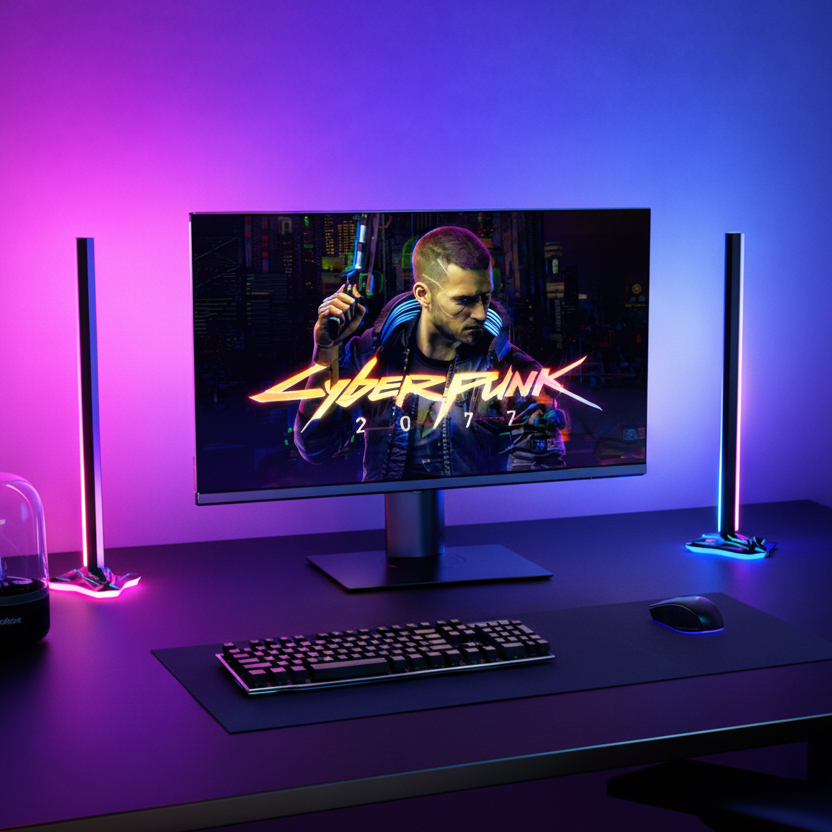
Sync bars work differently. Instead of sitting behind the monitor, they sit beside the screen and cast light across the desk and surrounding area. This extends the ambient effect beyond the wall behind your display.
Used together, a backlight strip and sync bars create a wider lighting effect. The strip makes the screen feel more immersive, while the bars help the rest of the desk feel connected to the same colour and mood.
The Zyko Atmos Setup
The Zyko Atmos backlight is a USB-powered RGBIC monitor backlight designed for clean, software-based screen sync. It does not need a camera, HDMI box or separate hub. You plug it in, run the desktop software and the backlight reacts to your screen in real time.
Atmos supports Windows and macOS, making it suitable for gaming desks, workstations and everyday monitor setups. The strip is designed for monitors from 24 to 49 inches and works with both flat and curved displays.
The software includes screen sync, music sync and custom colour controls. This means you can use reactive lighting for games and films, switch to music mode when listening to audio, or set a fixed colour when you want a calmer look.
Atmos Sync Bars can be added beside your monitor to extend the lighting effect across the wider desk area. They use the same software, so the whole system works together without needing a separate app.
What to Look For Before Buying
When choosing a monitor sync backlight, the first thing to check is the sync method. Software-based sync is usually the easiest option for PC and Mac users because it avoids cameras and HDMI hardware.
You should also check latency. A reactive backlight should feel connected to your screen, not delayed. Low-latency sync helps the lighting move naturally with the content instead of chasing it.
RGBIC lighting is also worth looking for. Since real screen content usually contains more than one colour, a multi-zone strip will create a more accurate and immersive effect than a basic single-colour strip.
Monitor size matters too. Make sure the backlight is designed for your screen size and that it can follow the shape of your monitor, especially if you use a curved display.
Finally, think about whether you want to expand the lighting later. A backlight strip might be enough on its own, but adding sync bars can create a fuller effect across the desk.
Compatibility and Setup
The Zyko Atmos backlight supports screen sync on Windows and macOS through desktop software. It is designed for PC and Mac setups rather than direct console screen sync.
Installation is straightforward. Clean the back of your monitor, apply the strip using the adhesive backing, connect it through USB and install the control software. From there, you can choose screen sync, music sync or a custom lighting mode.
If you add Atmos Sync Bars, they connect through the same system. Place them beside your monitor, adjust their direction and use the software to control the full lighting setup together.
Atmos can also be used across dual or triple monitor arrangements, depending on your layout. Multi-monitor lighting works best when the screens sit close together, allowing the glow to feel more unified across the desk.
Final Thoughts
A monitor sync backlight is a simple upgrade that can make a desk feel more immersive and visually balanced. It adds colour, softens the area around your screen and makes games, films and everyday use feel more connected to the space around you.
For a clean PC or Mac setup, a software-based USB backlight makes the most sense. It avoids extra cameras, HDMI boxes and unnecessary setup steps while still delivering reactive ambient lighting.
Start with the Atmos backlight if you want the core screen sync effect. Add Atmos Sync Bars if you want the lighting to spread further across the desk and surrounding area.

Leave a comment
This site is protected by hCaptcha and the hCaptcha Privacy Policy and Terms of Service apply.