
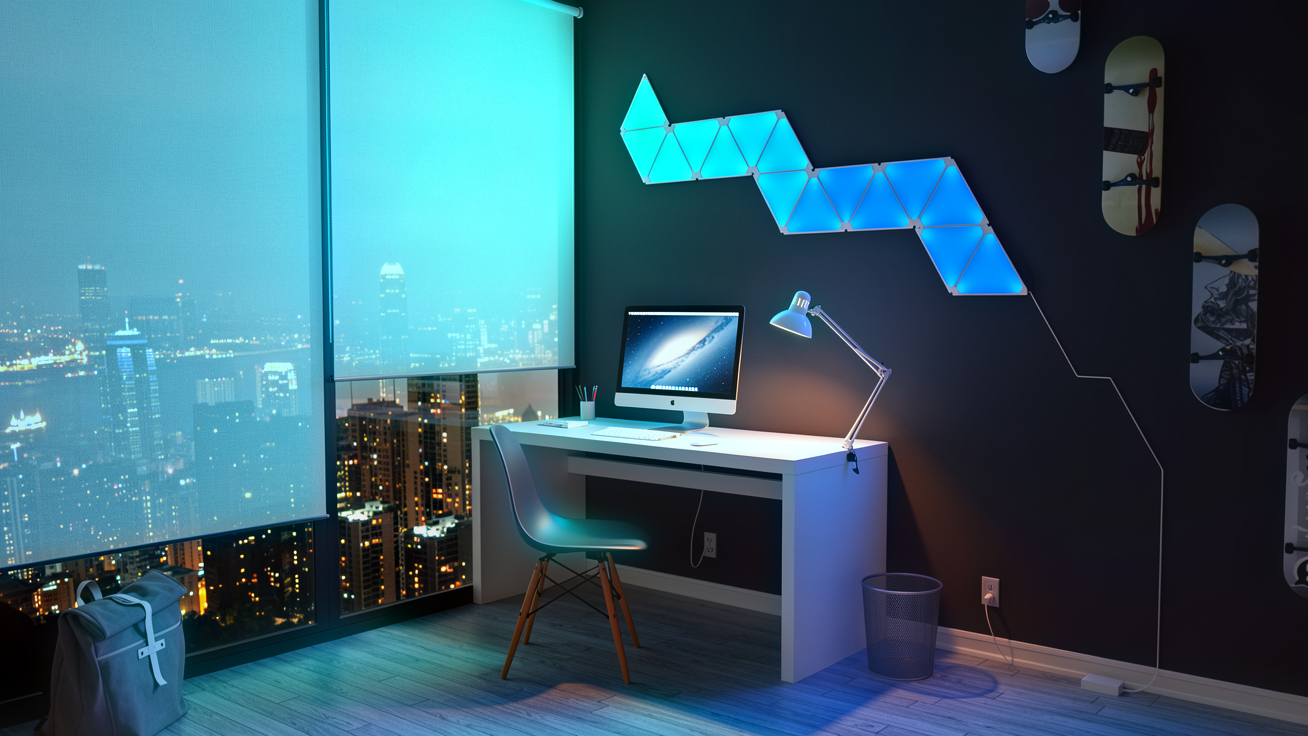
You do not need a new monitor, expensive desk or complete PC rebuild to make your setup feel dramatically better. Some of the biggest improvements come from fixing small things that you interact with every day: poor lighting, dangling cables, wasted desk space or a setup that simply feels unfinished.
The problem is that cheap desk accessories are everywhere. Plenty look good in a product photo but make almost no meaningful difference once they are sitting on your desk.
So this list takes a different approach.
Every upgrade below costs £50 or less individually and has been chosen because it solves a real problem, makes a noticeable visual difference or improves how the desk works day to day. Some are tech upgrades, some are simple organisation fixes, and several cost considerably less than the £50 limit.
You also do not need all ten. In most cases, choosing two or three upgrades that address the weakest parts of your current setup will make a bigger difference than filling your desk with accessories just because you can.
Prices can change over time, so always check the current price before ordering.
Quick comparison: which upgrade should you choose?
| Upgrade | Typical budget | Best for | Setup effort | Impact |
|---|---|---|---|---|
| Monitor backlighting | £25–£40 | Gaming atmosphere | Easy | High |
| Under-desk cable tray | £15–£25 | Removing clutter | Moderate | High |
| ARGB PC cable extensions | £25–£30 | Gaming PC aesthetics | Moderate | High |
| Oversized desk mat | £15–£30 | Comfort and visual cohesion | Very easy | Medium |
| Pixel display | £40–£50 | Personalisation | Easy | High |
| Monitor or laptop stand | £20–£40 | Desk space and positioning | Easy | Medium |
| Wall or background lighting | £20–£50 | Setup atmosphere | Easy to moderate | High |
| Powered USB hub | £20–£40 | Connectivity | Easy | Medium |
| Cable clips and anchors | £5–£15 | Cable control | Very easy | Medium |
| Headphone hook or under-desk storage | £10–£25 | Freeing desk space | Easy | Medium |
How we chose these upgrades
A good budget upgrade should do more than simply add another object to your desk.
For this guide, each recommendation had to meet at least one of four criteria:
- Remove a recurring annoyance such as cable clutter or a lack of ports.
- Make a noticeable visual difference without requiring an expensive replacement.
- Improve the way your available desk space is used.
- Add genuine personality rather than becoming more clutter.
We have also deliberately included products and categories that Zyko does not sell. The goal is to help you build a better setup, not convince you that every problem requires another RGB light.
With that out of the way, these are the upgrades we would actually consider.
1. Add monitor backlighting
Best for: Gaming setups, darker rooms and anyone whose monitor area feels visually flat.
Expected spend: Around £20–£40.
Lighting is one of the fastest ways to change how an entire setup feels without replacing anything already on the desk.
Rather than pointing more light into the room, monitor backlighting places light behind the display and uses the wall as a large reflective surface. The result is a softer layer of colour surrounding the monitor rather than another obvious lamp sitting on the desk.
The important part is choosing the right type.
A basic RGB strip can display colours and effects, which is enough if you simply want a consistent background glow. RGBIC lighting allows multiple colours to appear across different sections of the strip at the same time, producing gradients and more complex effects.
Screen-reactive systems go another step further by changing the lighting to follow what is happening on the display.

If you want to understand the different ways this works, our monitor backlight sync guide explains screen syncing, RGBIC lighting and what to look for before choosing a system.
That can work particularly well for games, films and colourful content where the lighting feels like an extension of the screen rather than a separate decoration.
The Zyko Atmos Monitor Sync Backlight is one example that currently sits comfortably below the £50 limit.
If you already have plenty of lighting around your monitor, however, adding another strip may achieve very little. Spend the money somewhere else on this list instead.
2. Hide everything underneath the desk
Best for: Anyone with visible power bricks, extension leads and cables hanging towards the floor.
Expected spend: Around £15–£25.
Cable management is not exciting to shop for, but it can make a bigger visual difference than many expensive accessories.
Look underneath most gaming desks and you will find the same problem: monitor power cables, PC leads, charging cables and an extension block all hanging independently.
An under-desk cable tray gives all of that somewhere to live.
Instead of trying to hide every individual wire, mount the power strip and excess cable length underneath the desk, then allow only the cables that actually need to move to leave the tray.
Clamp-mounted trays are particularly useful if you rent or do not want to drill into the desk. Screw-mounted trays can usually carry more weight but require a more permanent installation.
One useful rule is to keep the power distribution underneath the desk and only bring the final cable up to each device.
That turns ten visible cables into two or three.
Before buying one, measure the power strip and any larger adapters you plan to place inside it. A shallow tray that cannot accommodate your power bricks will quickly become another abandoned desk accessory.
3. Upgrade the cables inside your gaming PC
Best for: PCs with a glass side panel where motherboard or GPU power cables are clearly visible.
Expected spend: Around £25–£30.
People often improve everything surrounding their PC while leaving the computer itself looking exactly as it did when it was built.
If your case has a glass side panel, the power cables running into the motherboard and graphics card occupy a surprisingly large part of what you can actually see.

ARGB cable extensions turn those otherwise functional cable runs into part of the lighting design.
ARGB stands for Addressable RGB. Unlike conventional RGB lighting where a group of LEDs generally follows the same colour or effect, addressable LEDs can be controlled individually. That allows effects to move across the lighting rather than simply changing the entire component from one colour to another.
There is an important compatibility point here.
PC lighting commonly uses a 5V 3-pin ARGB connection. This is different from a 12V RGB header, and the two should not be treated as interchangeable.
You also need to choose the correct power connector for your hardware. A 24-pin motherboard extension is not the same thing as a dual 8-pin GPU extension, for example.
Check your existing connections before ordering anything.
Zyko's RGB PC Components range includes several illuminated cable-extension configurations, making this one of the more targeted upgrades on the list. It will not improve your frame rate, temperatures or PC performance, but aesthetically it can make a glass-sided build feel considerably more deliberate.
Skip this upgrade entirely if your case has a solid side panel. There is little point spending money on something you will never see.
4. Use one oversized desk mat
Best for: Almost any desk that currently has a small mouse pad surrounded by empty surface.
Expected spend: Around £15–£30.
An oversized desk mat is one of the simplest upgrades here, but it works because it visually connects the objects sitting on top of it.
Instead of your keyboard, mouse and accessories appearing as separate items scattered across a desk, a large mat creates one defined working area.
The material matters.
Felt works particularly well with warmer, minimalist and wood-based setups. Faux leather creates a cleaner, more structured appearance and is easier to wipe down. Traditional fabric gaming mats usually provide the best mouse surface if performance is the priority.
Measure before buying.
The mat should be large enough to comfortably contain your keyboard and mouse movement without covering so much of the desk that it looks poorly fitted.
If you already own a large mouse mat that matches your setup, there is no reason to replace it purely for the sake of this list.
5. Give the desk one real focal point
Best for: Setups that look clean but lack personality.
Expected spend: Around £40–£50.
There is a difference between decorating a desk and covering it in stuff.
A strong setup normally benefits from one or two objects that draw attention rather than ten small ornaments competing for it.
A programmable pixel display is useful here because the same physical object can change depending on the setup.
You can use it for pixel artwork one day, animations or GIFs another, then switch to a clock or message when you want something more functional.
That makes it easier to change the appearance of the desk without continually buying more decorations.
The Zyko Pixel Display currently starts below £50 and supports custom pixel artwork, animations and other display modes controlled from your phone.

Placement matters more than people expect.
Do not automatically put a display directly beside the monitor. Try using the empty area underneath a raised monitor, a desk shelf or the opposite side of the desk from your PC.
The goal is to balance the setup rather than create another bright object fighting for attention with the monitor.
6. Create useful vertical space
Best for: Small desks, laptops and setups with very little space underneath the monitor.
Expected spend: Around £20–£40.
When a desk feels cramped, the natural reaction is often to buy a larger desk.
Sometimes the real problem is simply that everything is sitting on the same horizontal level.
A monitor riser or laptop stand introduces another layer of usable space.
A monitor riser can provide room underneath for a keyboard, controller, notebook or small accessories. A vertical laptop stand can reclaim a surprisingly large amount of surface area when you use the laptop with an external monitor.
Do not choose a stand based entirely on appearance.
Check the maximum supported weight, dimensions and stability first. If it raises a monitor, make sure the final viewing position still feels comfortable rather than blindly assuming higher is better.
For laptops, make sure any stand does not block the device's cooling vents.
This is one of the best desk accessories under £50 for people who actually need more usable workspace rather than more lighting.
7. Light the background, not just the desk
Best for: Setups positioned against a large empty wall.
Expected spend: Anywhere from £20 to £50 depending on the lighting style.
One common mistake with RGB setups is putting every light source directly around the monitor.
You end up with an extremely bright desk surrounded by a completely empty room.
Background lighting fixes that imbalance.
Wall bars, rope lights and modular lighting can add depth behind the desk and make the setup feel like part of the room rather than an isolated collection of electronics.
Try to think in layers.
Your monitor provides the brightest visual area. Lighting immediately around it becomes the second layer. Wall or corner lighting should normally sit further back and complement those colours rather than competing with them.
If your monitor is blue and purple, for example, you do not necessarily need five additional colours on the wall. Repeating one of the existing tones can create a much more cohesive result.

The Zyko Elements collection includes several different approaches to setup lighting, including options below the £50 mark as well as larger options for anyone who wants to expand the setup later.
This is where browsing a collection makes more sense than recommending one specific product. A rope light and a geometric wall light solve very different design problems.
Before ordering anything wall-mounted, plan where the power cable will go. Beautiful lighting with a black cable hanging straight down the middle of the wall tends to defeat the point.
8. Add a powered USB hub where you can actually reach it
Best for: Desks with chargers, controllers, lighting and accessories constantly competing for ports.
Expected spend: Around £20–£40.
A USB hub sounds boring until you realise you are crawling underneath the desk for the third time that week to unplug something.
Place frequently used connectivity somewhere accessible instead.
A desk-mounted or clamp-mounted hub can give you easy access to ports for controllers, flash drives, charging cables and accessories without turning the front of the PC into a permanent cable bundle.
Pay attention to whether a hub is powered or unpowered.
An unpowered hub shares the available power from a single USB connection. That can be perfectly adequate for simple peripherals and data devices.
A powered hub has its own external power supply, making it better suited to setups where several connected devices may need power at the same time.
Also check the data standard. A collection of ports is not particularly useful if the hub becomes a bottleneck for the devices you plan to connect.
9. Stop charging cables disappearing behind the desk
Best for: Almost everybody.
Expected spend: £5–£15.
This may be the cheapest recommendation in the entire guide.
Small magnetic cable anchors or adhesive cable clips can keep frequently used charging cables exactly where your hand expects them to be.
Put them near the front or side edge of the desk for your phone, headphones, controller or other rechargeable accessories.
The trick is not to clip every cable you own to the desktop.
Use them only for cables you regularly disconnect.
Permanent cables such as monitor power, Ethernet and display connections should normally be routed out of sight with the rest of the cable management.
The result is a desk where the cables you need are easy to reach and the ones you do not need are almost invisible.
Sometimes the best cheap desk setup upgrades are the ones you stop noticing after a week because they simply remove an irritation.
10. Move your headphones off the desk
Best for: Headset users with limited desk space.
Expected spend: Around £10–£25.
A gaming headset can take up an absurd amount of desk space for something that spends most of the day doing absolutely nothing.
An under-desk headphone hook solves that problem for very little money.
Mounting underneath the desk keeps the headset nearby without adding another object to the desktop. If you prefer displaying the headset, a simple stand can also work, particularly if it fills an otherwise awkward empty area.
Choose based on your actual goal.
If you want a cleaner desk, put the headset underneath.
If the headset is part of the visual setup and you have plenty of room, display it.
Avoid mounting a hook where your knee will hit it every time you sit down. It sounds obvious until you discover why the previous owner of your desk removed theirs.
Bonus: what if your desk is part of a larger gaming room?
The £50 rule does not have to stop at the edge of the desk.
If your setup also includes a television or console area, using similar lighting across both spaces can make the whole room feel much more cohesive.
A TV backlight is particularly effective when the television is surrounded by otherwise empty wall space.
You can use simple static lighting to match the rest of the room, or screen-sync lighting to create a more reactive effect while gaming or watching films.
The Zyko Atmos TV Sync Backlight is one option within the same sub-£50 budget range.
I would only consider this after the desk itself is sorted. A glowing television will not make the pile of extension leads underneath your desk disappear.
What should you upgrade first?
If you only have £50 total rather than £50 for each upgrade, do not divide the money across five cheap accessories.
Find the biggest weakness in your setup and solve that first.
If the desk looks messy, start with cable management.
If it looks clean but boring, change the lighting.
If you constantly run out of room, use vertical storage or a monitor stand.
If the setup already works perfectly but does not feel like yours, add one personal focal point.
This problem-first approach normally produces a better result than copying somebody else's shopping list.
A £15 cable tray that fixes the most annoying part of your desk is a better upgrade than a £49 gadget you did not need.
A simple £50 setup upgrade plan
If you want several improvements from one £50 budget, here is a more practical way to divide it.
Clean setup
Under-desk cable tray: approximately £20
Cable clips: approximately £10
Desk mat: approximately £20
Total: around £50
Gaming atmosphere
Monitor backlighting: approximately £30–£40
Cable clips or a small accessory: approximately £10
Total: around £40–£50
Small desk
Monitor or laptop riser: approximately £25–£35
Under-desk headphone hook: approximately £10
Cable clips: approximately £5
Total: around £40–£50
Gaming PC aesthetic
ARGB cable extension: approximately £25–£30
Remaining budget towards cable management or a desk accessory
Total: around £30–£50
There is no universal winning combination. Spend according to what your setup is actually missing.
Frequently asked questions
What are the best desk accessories under £50?
The most useful options are usually accessories that solve an existing problem. Cable trays improve clutter, large desk mats help organise the working area, monitor or laptop stands reclaim space, lighting can change the atmosphere and a powered USB hub makes frequently used connections easier to access.
Which one is "best" depends on what currently bothers you about your desk.
What is the easiest cheap desk setup upgrade?
Cable clips, an oversized desk mat and simple monitor backlighting are among the easiest changes because they require little or no permanent modification to the desk.
A few minutes of cable organisation can sometimes make a bigger difference than adding another expensive accessory.
How can I make a gaming setup look better without spending much?
Start with consistency rather than quantity.
Choose a small colour palette, hide visible cables, remove unnecessary objects and use lighting to highlight the monitor or wall instead of placing RGB on every available surface.
If your PC has a glass side panel, improving visible internal cables can also make the computer itself fit the rest of the setup.
What are the must-have desk accessories under £50?
There are very few accessories that everybody genuinely needs.
For most people, cable management, a good desk mat and accessible charging or USB connections provide more day-to-day value than decorative gadgets.
After the practical problems are solved, lighting and display accessories become much more effective because they are being added to an already clean foundation.
Final thoughts
The best budget desk setup upgrades are not necessarily the ones with the most features.
They are the ones that fix something.
Removing a bundle of cables can transform how clean the desk looks. Adding one background light can completely change how the monitor area feels. Raising a laptop by a few centimetres can reclaim the space underneath it. One carefully chosen display can add more personality than ten small decorations.
Start with the weakest part of your setup, give yourself a maximum £50 budget and make one meaningful change.
Then live with it for a while.
You may find the next upgrade you thought you needed suddenly does not seem quite as important.


Leave a comment
This site is protected by hCaptcha and the hCaptcha Privacy Policy and Terms of Service apply.